 Integration guide for CMS
publish where your site already lives
Connect Webflow to PilotDeck
This guide walks you through linking a Webflow site to a PilotDeck site, so approved articles land in your Webflow CMS without copy and paste. It takes about five minutes. The example uses a PilotDeck site named pilotdeck-testwebsite.
In this guide
- Overview : The seven steps and who performs each one
- Sign in to Webflow : Log in as the site owner
- Open API access : Site settings, Apps & Integrations
- Generate the token : CMS read and write, Sites read-only
- Open Integrations in PilotDeck : Settings, Integrations, choose Webflow
- Paste the token : Pick Draft only or Publish live
- Test and connect : Run Test connection, then Connect
- Verify : Send a test draft and check it in Webflow
- Publish modes : Draft only compared with Publish live
What connecting Webflow does
PilotDeck researches, drafts and queues content for review. A CMS connection is the last hop: once you approve a draft, PilotDeck sends it to your CMS for you. Without a connection, every article and fix waits for you to paste it in yourself.
One token, no mapping
You give PilotDeck a single Webflow Site API token. It finds your site, your CMS Collection (for example "Posts") and the matching fields on its own.
Drafts first
The default publish mode is Draft only. Items arrive in Webflow as drafts, so nothing goes live until you publish it there.
Reversible
You can disconnect at any time from the same screen. Disconnecting stops publishing right away, and you reconnect by entering a token again.
Before you start
| You need | Details |
|---|---|
| A Webflow site with a CMS Collection | A blog template already includes a "Posts" collection. The free plan works for the .webflow.io staging site. |
| A Webflow login | Access to that site's settings, so you can create an API token. Webflow's bot check may ask you to press and hold a button. |
| A PilotDeck login | Permission to change integrations for the site. Without it the Connect button is unavailable. |
| Token permissions | CMS: Read and write and Sites: Read-only. CMS access alone is not enough, because PilotDeck also calls the Sites API to learn which site the token belongs to. |
Overview
- 1Sign in to WebflowYou
- 2Open the site's Apps & integrations settingsYou
- 3Generate an API token with the right permissionsYou
- 4Open Settings > Integrations in PilotDeck and pick WebflowYou
- 5Paste the token and choose a publish modeYou
- 6Test the connection, then connect. PilotDeck discovers the site, collection and fieldsPilotDeck
- 7Send a test draft and check it in WebflowVerify
Sign in to Webflow
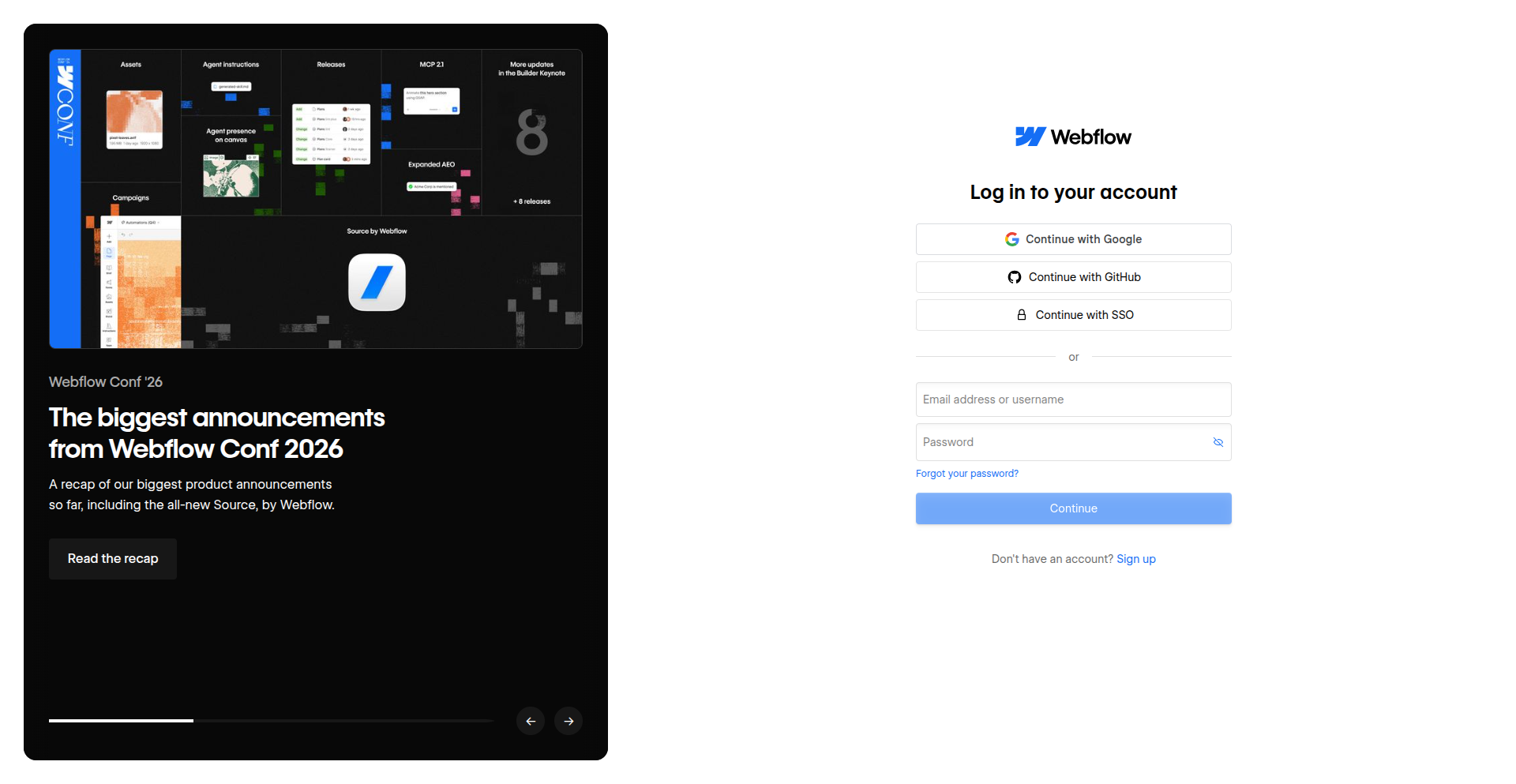
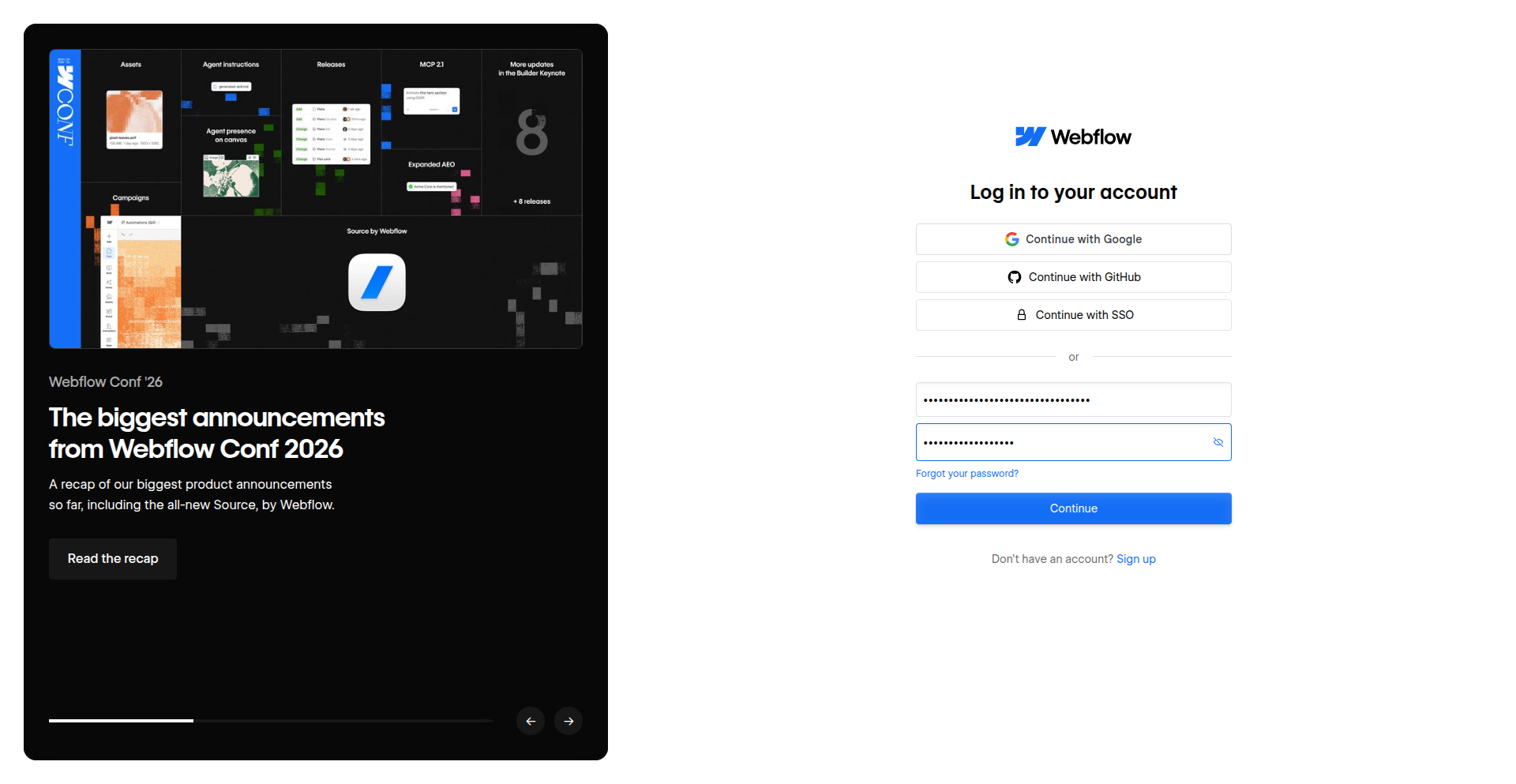
YouOpen webflow.com/dashboard/login and sign in with the account that owns the site. Use email and password, or the Google, GitHub or SSO button you normally use.
Open Apps & integrations
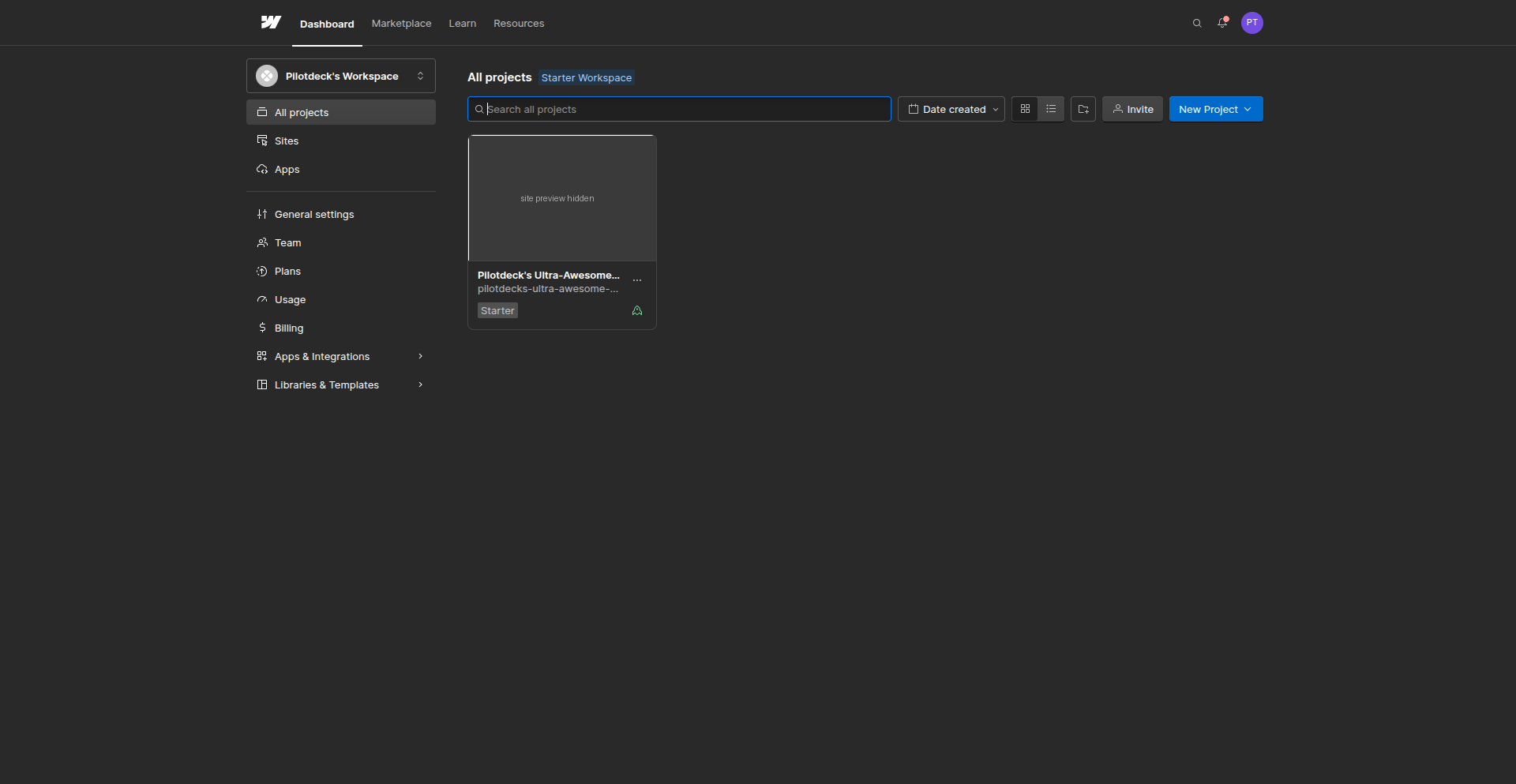
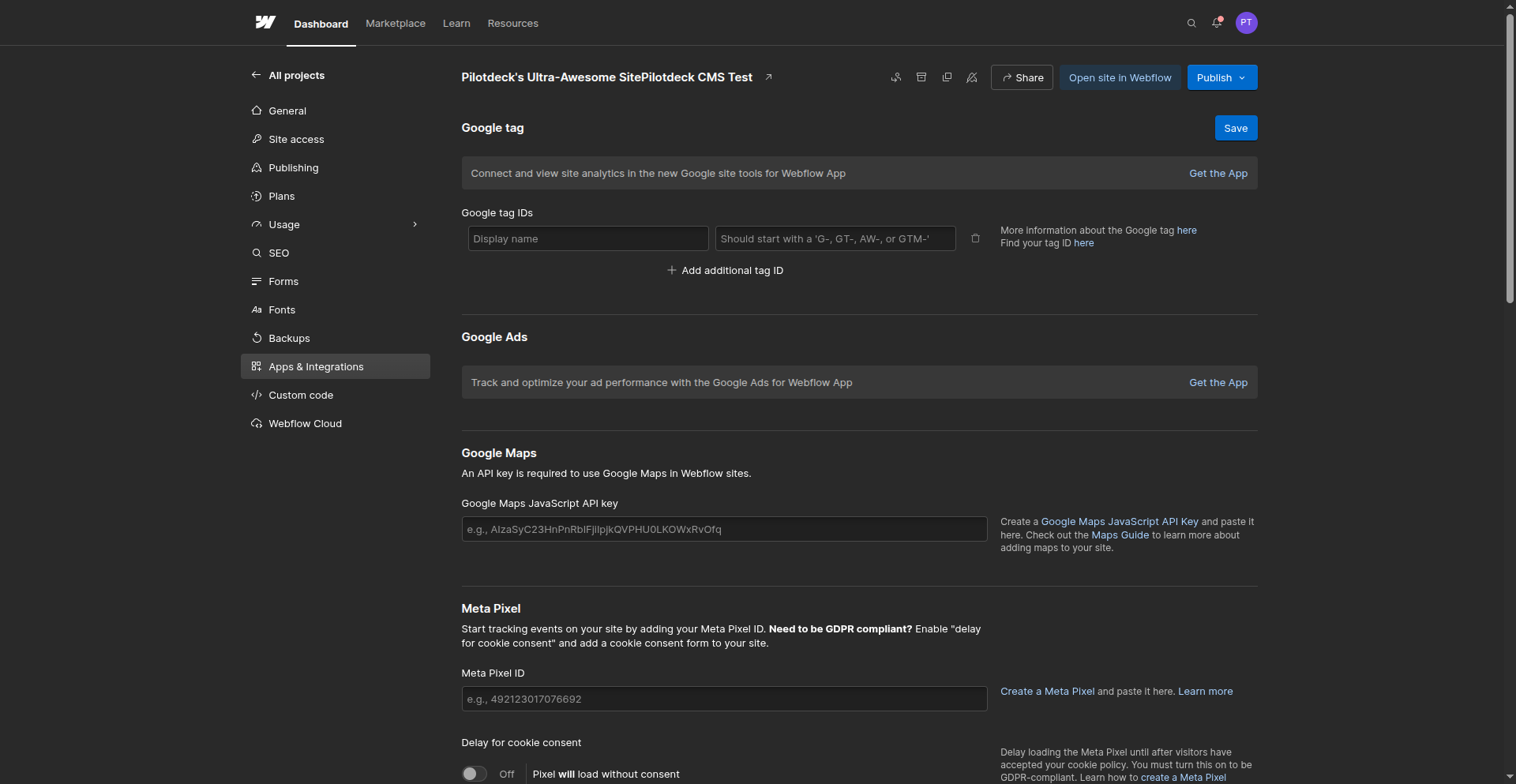
YouOn the project card, open Site settings, then choose Apps & Integrations in the left menu. Scroll to the API access section near the bottom.
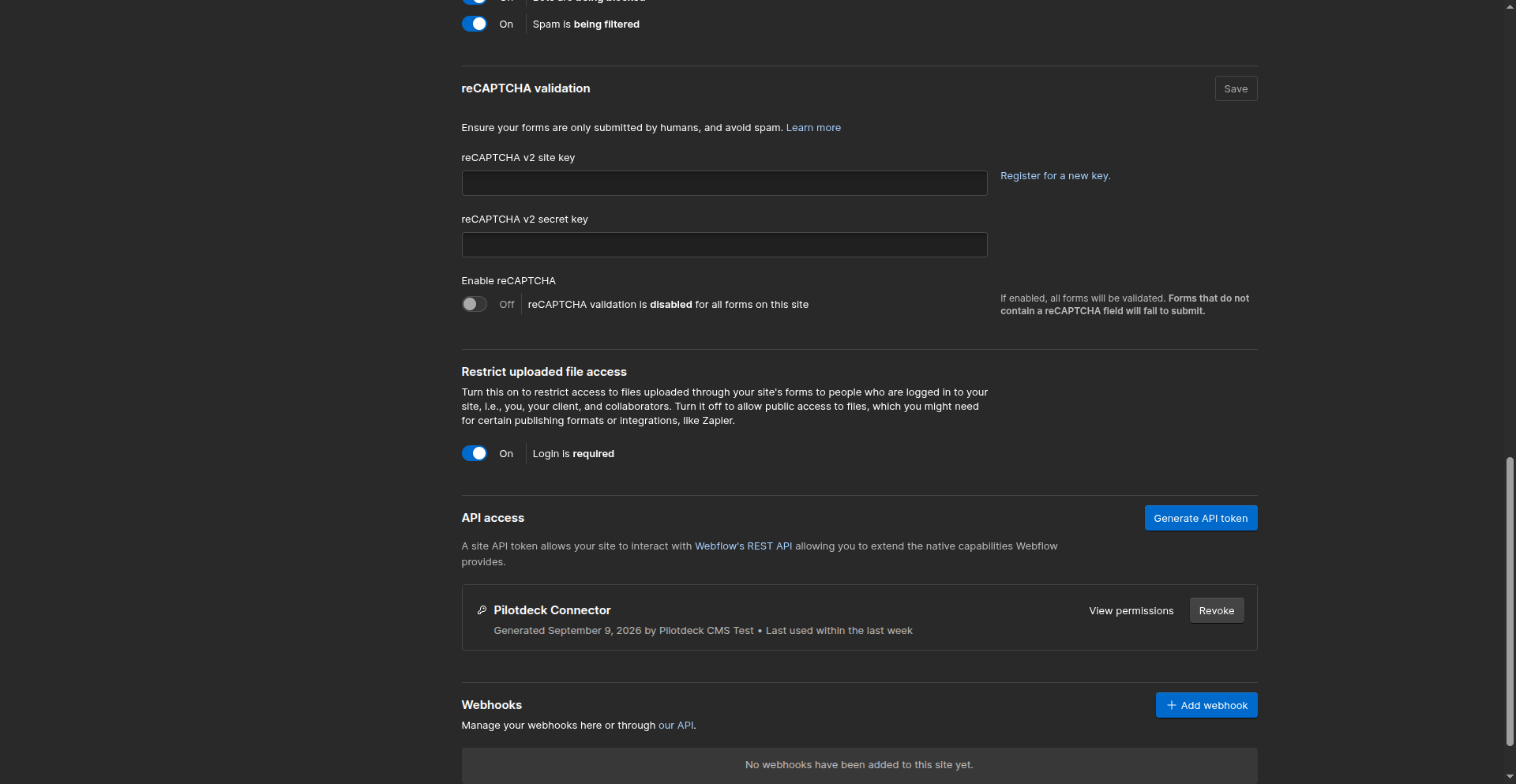
Generate an API token
YouClick Generate API token. Name it something recognisable, such as PilotDeck Connector, then set the permissions:
- CMS: Read and write
- Sites: Read-only
- Leave everything else on No access.
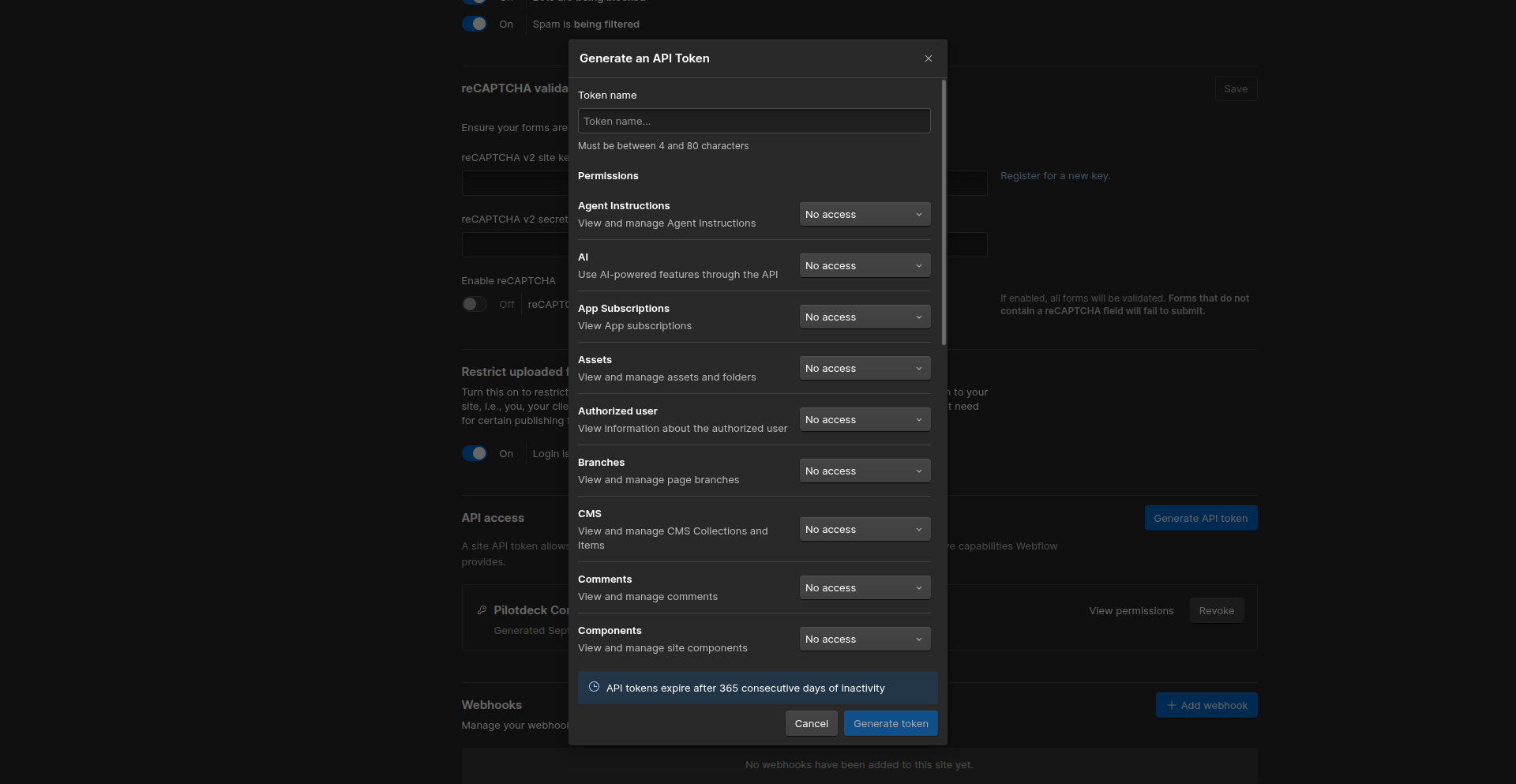
Click Generate token and copy the token straight away. Webflow does not show it again.
Open Integrations in PilotDeck
YouIn PilotDeck, make sure the correct site is selected in the top-left site switcher (here, pilotdeck-testwebsite). Go to Settings > Integrations and find the CMS Connection card. With nothing connected it reads "No CMS connected".
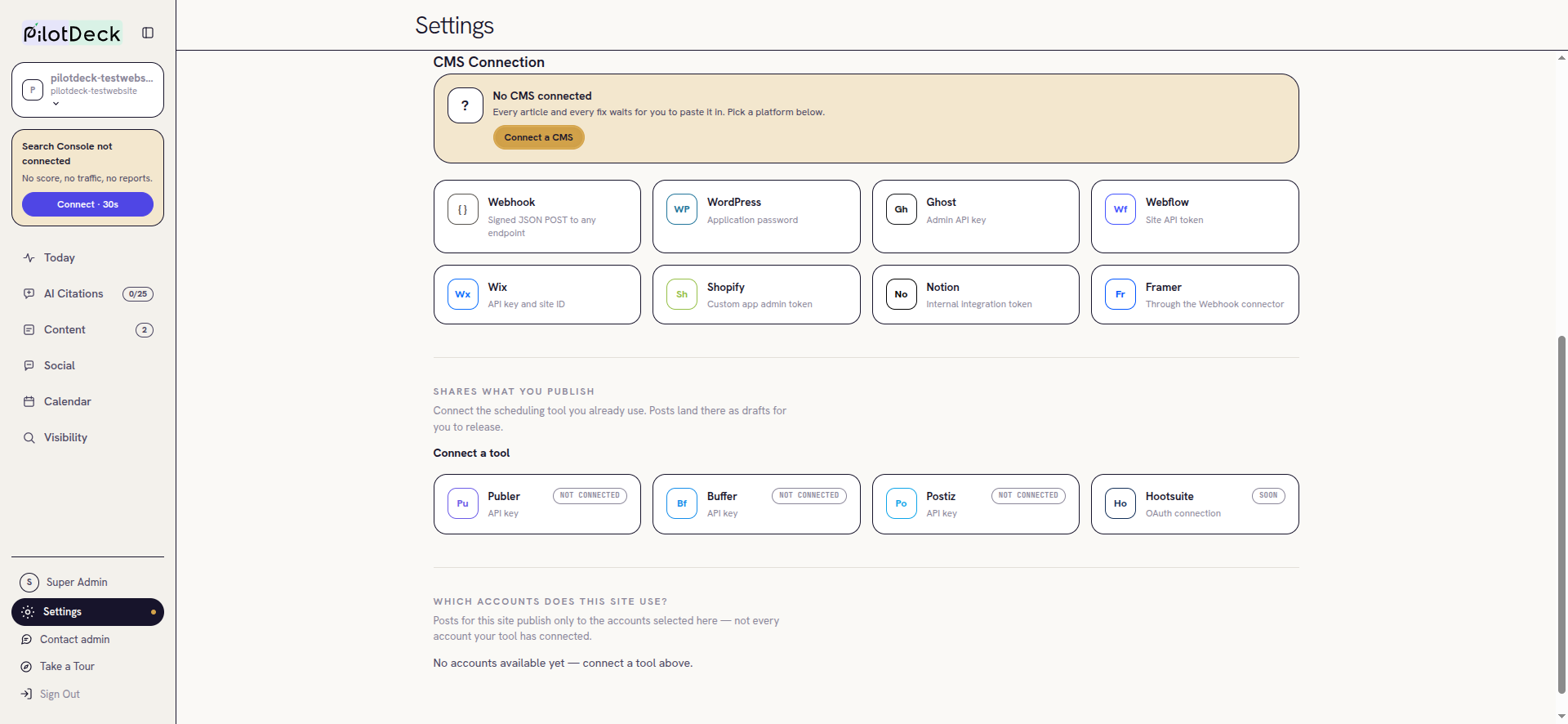
Click Webflow (Site API token). A short "How to connect Webflow" panel appears next to the form.
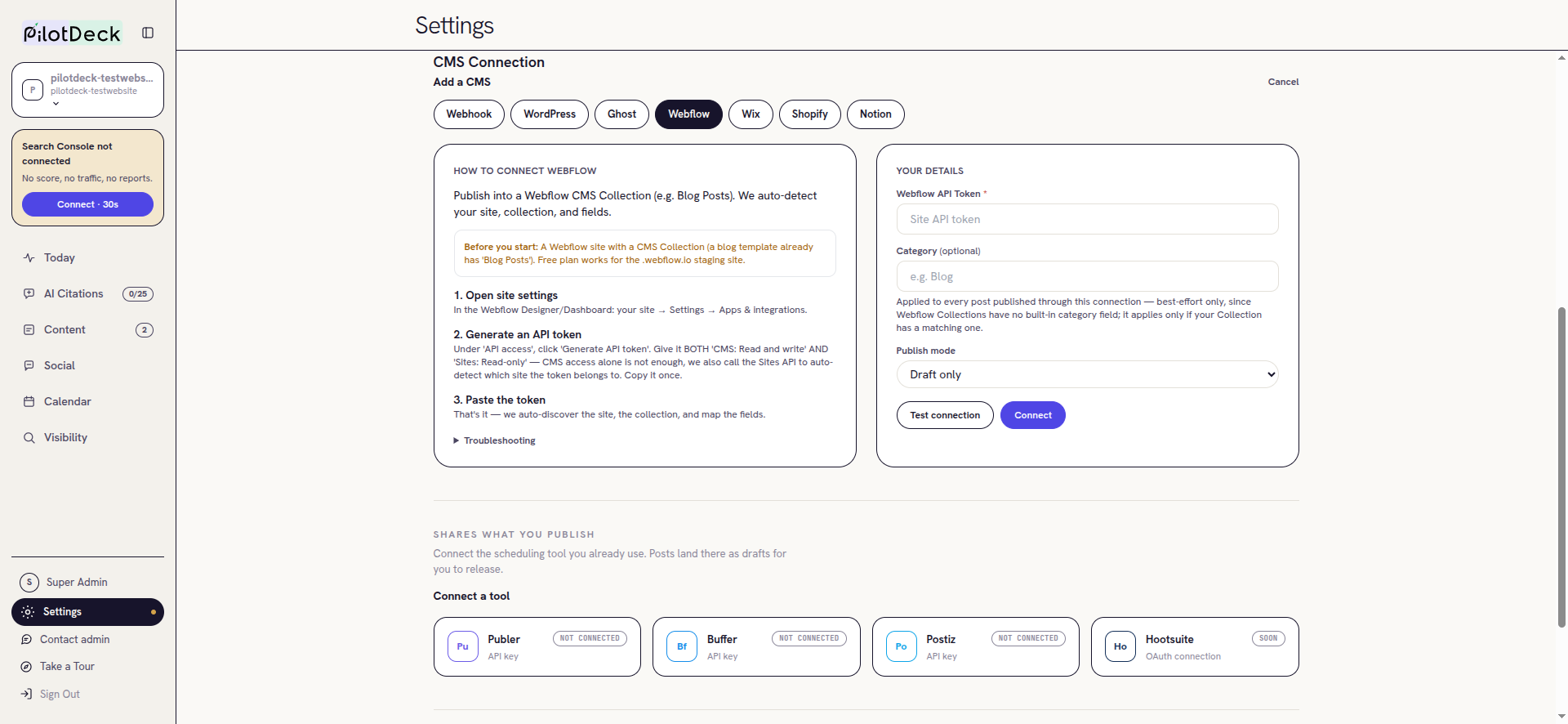
Paste the token and choose a mode
You- Paste the token into Webflow API Token. The field shows dots, so you can't read it back.
- Category is optional. Webflow Collections have no built-in category field, so it only applies if your Collection has a matching one.
- Pick a Publish mode. Start with Draft only (see Publish modes).
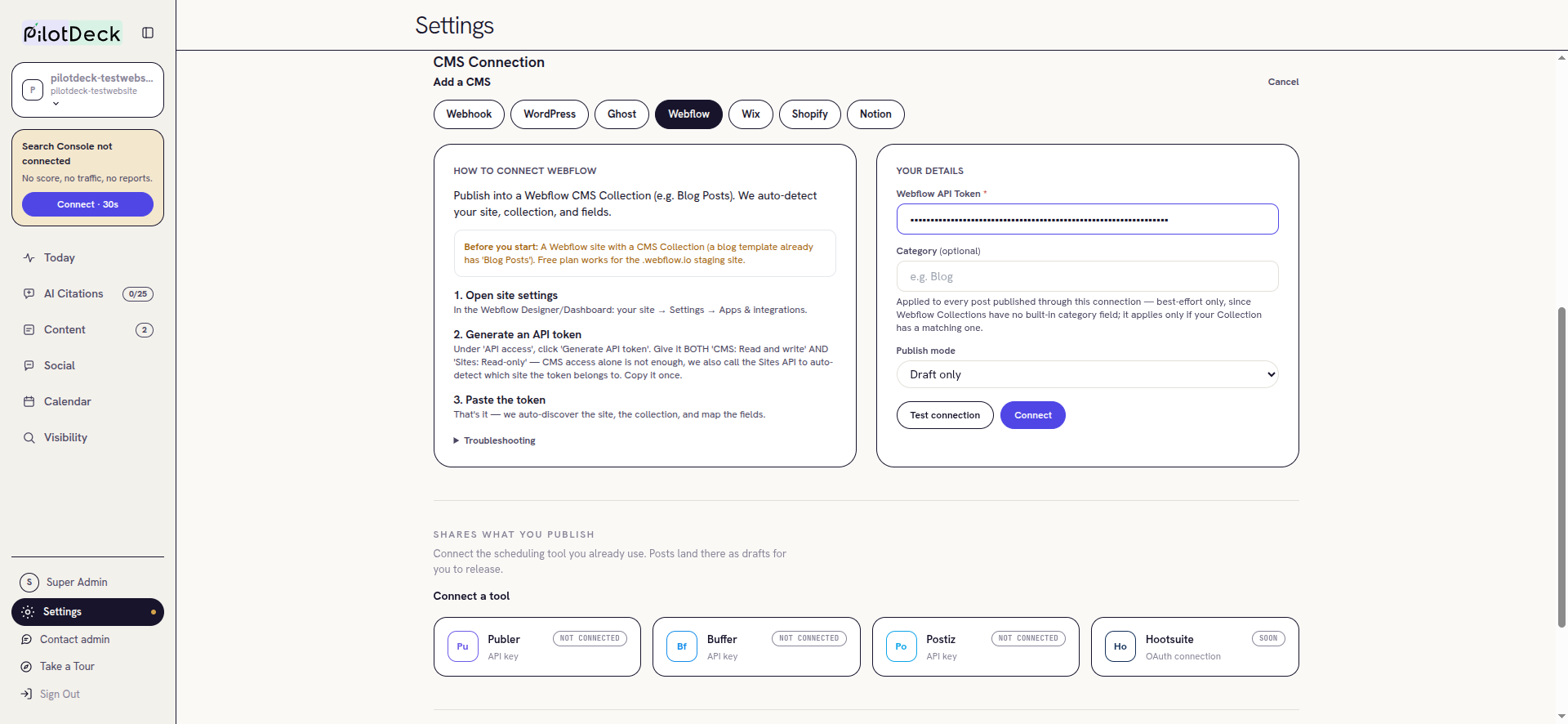
Test, then connect
PilotDeckClick Test connection first. PilotDeck checks the token against Webflow without saving anything. You should see "Looks good, credentials work."
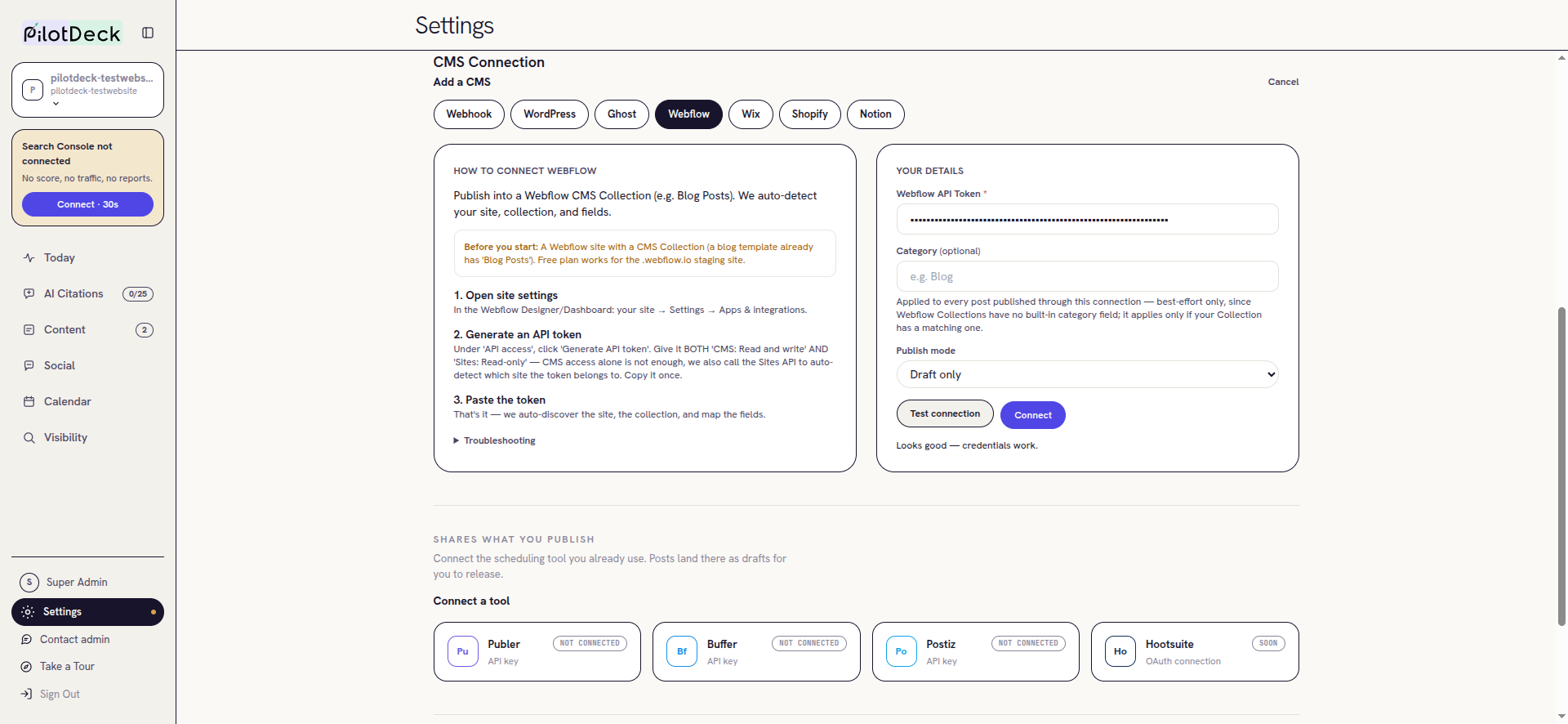
Then click Connect. PilotDeck detects the site, the collection and the field mapping. A "CMS connected." message appears, and the card turns green with an ACTIVE badge.
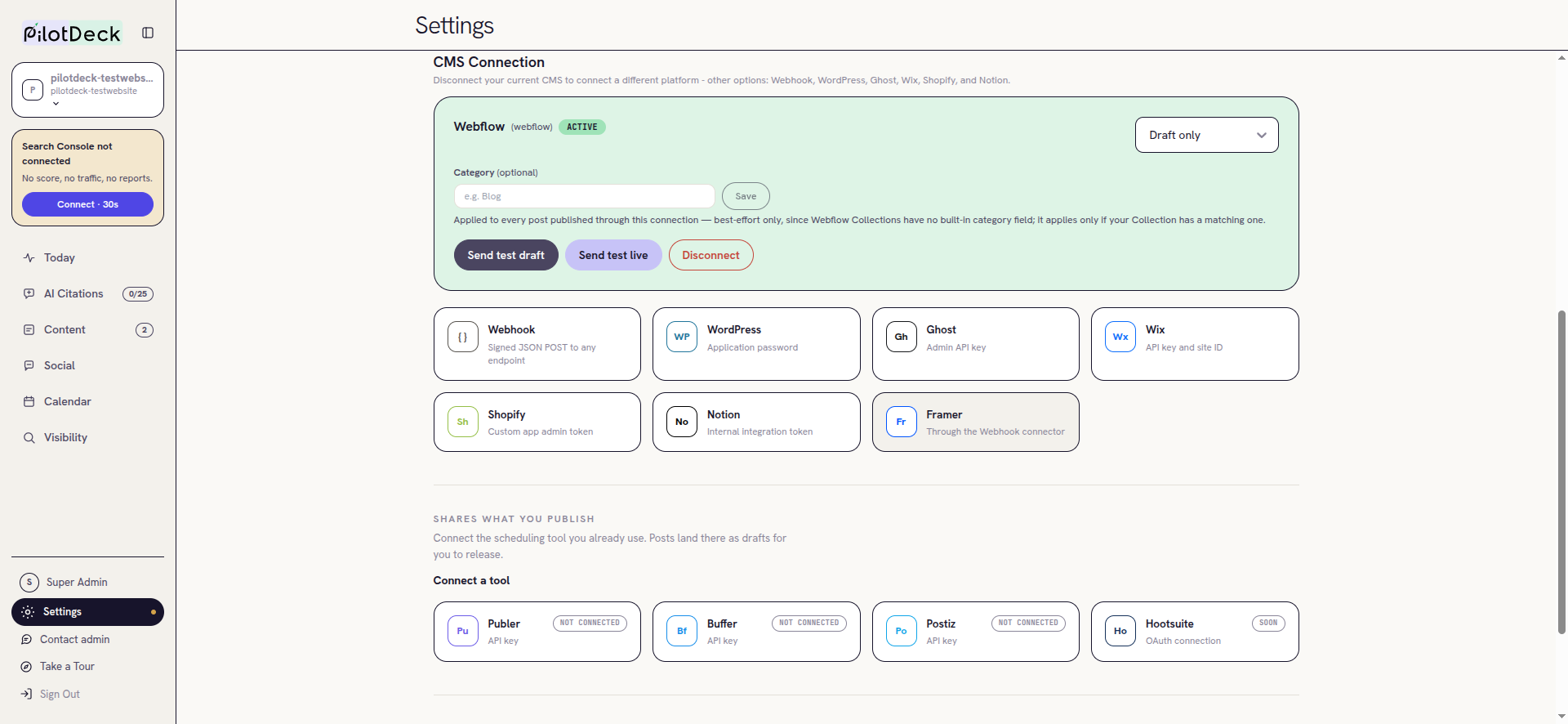
Verify with a test post
VerifyOn the connected card, click Send test draft. PilotDeck sends a sample article to Webflow as a draft. Then open the site in the Webflow Designer, choose CMS > Posts, and look for it. Drafts show as Draft and Not Published.

Publish modes
| Mode | What happens | When to use it |
|---|---|---|
| Draft only (default) | Items are created in Webflow as drafts. You publish them in Webflow when ready. | Recommended while you learn the flow, or when someone reviews on the Webflow side. |
| Publish live | Items are created and published, so they appear on the live site. | Once you trust the output and your review step happens in PilotDeck. |
Disconnecting
On the connected card click Disconnect and confirm. Approved content stops publishing to Webflow right away. This cannot be undone, but you can reconnect by repeating steps 4 to 6 with a token. To fully remove access, also Revoke the token in Webflow's API access list.
Troubleshooting
"Test connection" fails
Check the token has both CMS: Read and write and Sites: Read-only. Make sure you pasted the whole token with no spaces, and that it belongs to the site you want, not another one.
Connect works but a draft fails to send
Some templates mark several Collection fields as required. PilotDeck cannot fill fields it has no content for. In Webflow, open the Collection settings and make those fields optional. The test site's blog template needed five fields changed.
Webflow shows a bot check
Webflow protects its login with "press and hold". Complete it yourself in the browser, then continue.
The item has no link back in PilotDeck
Webflow has no bookmarkable per-item address in the Designer. Draft items therefore have no live URL. Items published live get their live page address.
Token stopped working
Webflow tokens expire after 365 consecutive days of inactivity, and they stop working if revoked. Generate a new one, then disconnect and reconnect in PilotDeck.
The category is ignored
Category is best-effort. It applies only if your Collection has a field it can match.